





Efficient Import and Export of Excel or CSV Files in SQL Developer
ByYogesh Mishra


In today's data-driven world, the ability to seamlessly import and export data between various formats and systems is crucial for organizations and individuals alike. Whether it's analyzing sales figures, managing customer databases, or conducting extensive research, being able to transfer data efficiently and accurately can save valuable time and effort.
One of the most popular tools for managing data in the SQL environment is SQL Developer. This powerful Integrated Development Environment (IDE) provides database administrators, developers, and data analysts with a comprehensive set of features to interact with their databases effectively. One such feature that makes SQL Developer a favorite among data professionals is its ability to import and export data from Excel and CSV files.
However, importing and exporting data is not always as straightforward as it seems. Data inconsistencies, formatting issues, and large dataset sizes can lead to frustrating roadblocks if not addressed properly. This is where our blog comes into play.
In this comprehensive guide, we will delve into the art of mastering data transfer using SQL Developer. From importing data from Excel or CSV files into your database tables to exporting query results to Excel or CSV format, we will explore the best practices, tips, and tricks to ensure a smooth and efficient data exchange process.
No matter your level of expertise, whether you're a seasoned SQL Developer pro or just starting your journey with the tool, this blog will cater to your needs.
We will walk you through step-by-step procedures, accompanied by illustrative examples, screenshots.
Oracle : 11g
Sql developer : Version 23.1.0.097
- Installation + Connection
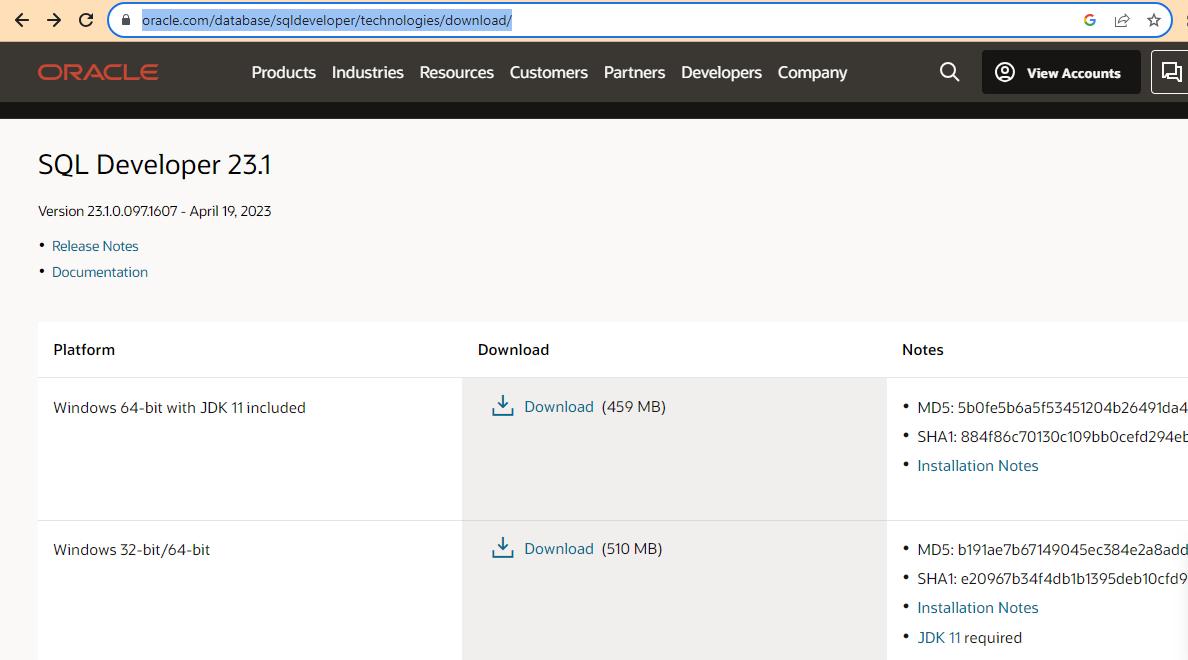
- A zip will be downloaded -> unzip -> in the folder execute file named sqldeveloper.exe and it’s up !!
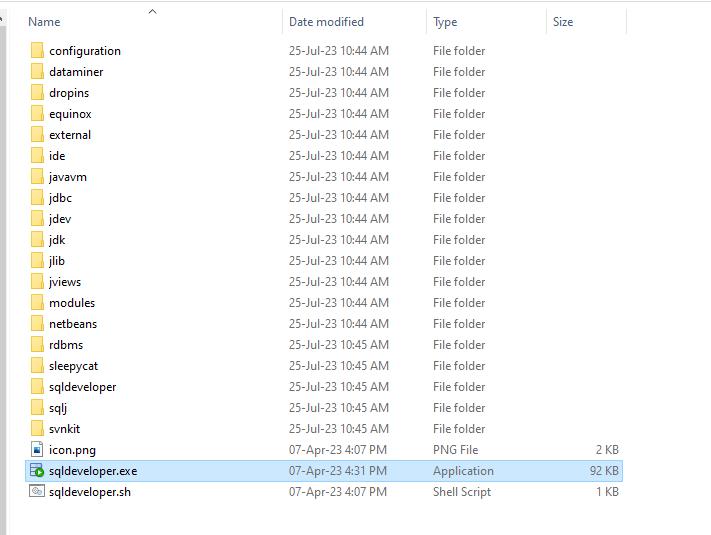
No installation required.
- Click on + icon on left and add credentials
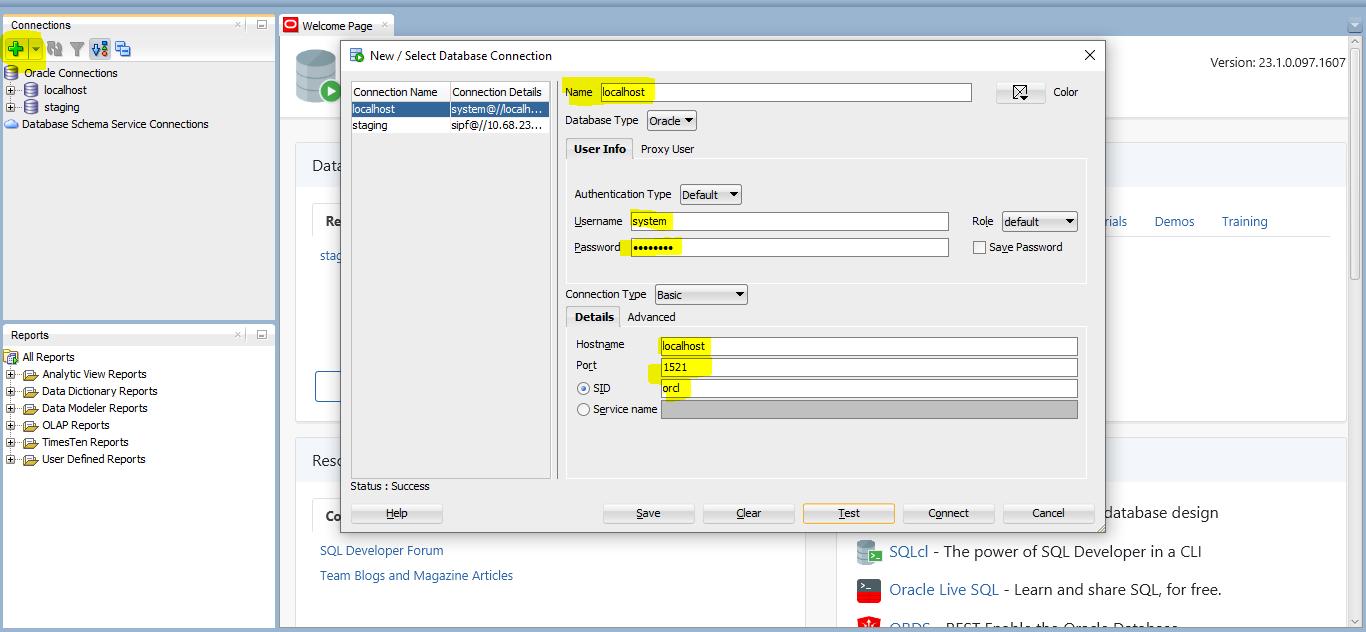
- Let’s create two tables with the same fields. Export data from customer_old and import in customer_new
Export
There are two ways to export
- Using export wizard :-
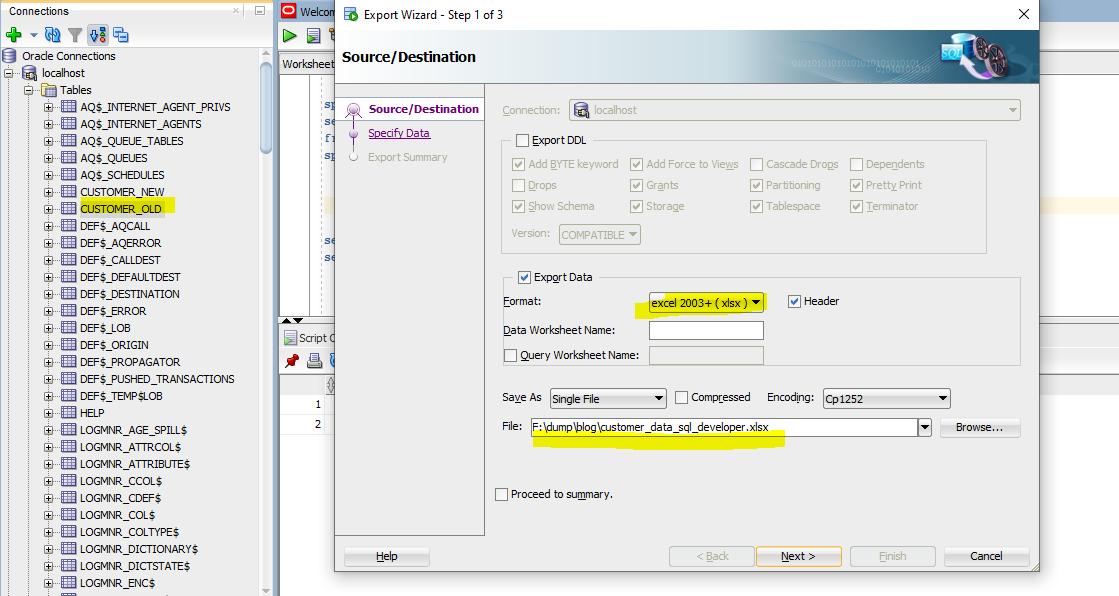
- Right click on table -> click export -> export wizard will open
- In export wizard untick Export DDL
- In Format dropdown select excel or csv whatever desired, we selected excel 2003+ (xlsx)
- Please provide file path -> click next
- Provide columns -> click next
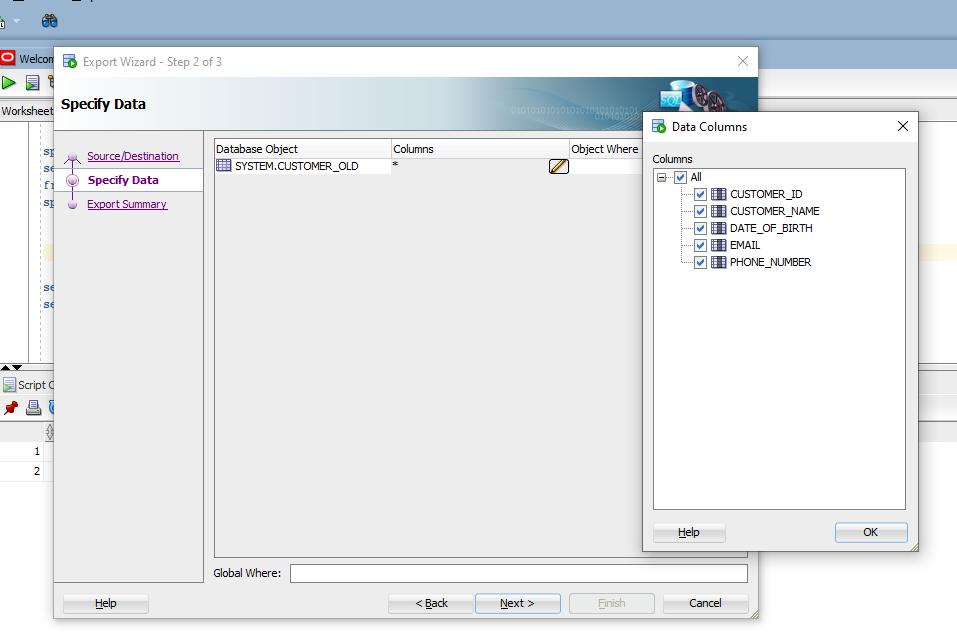
- Check the summary
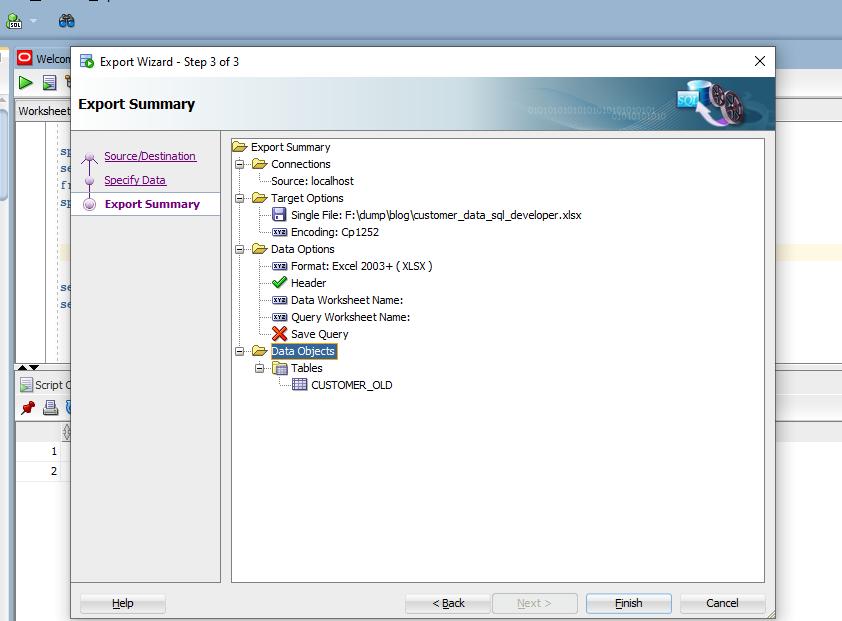
Click finish and check the file.
- Export using query:
Execute below query using F5 in query window
spool "F:/customer_old.csv";
select /*csv*/ *
from customer_old;
spool off;
This will save customer_old table data in customer_old.csv file.
Import
Before import please fix the data type from excel. All the date types are in general, select columns and changes to numbers. Fix the date format also if required.
-
Right click on table where data will be imported
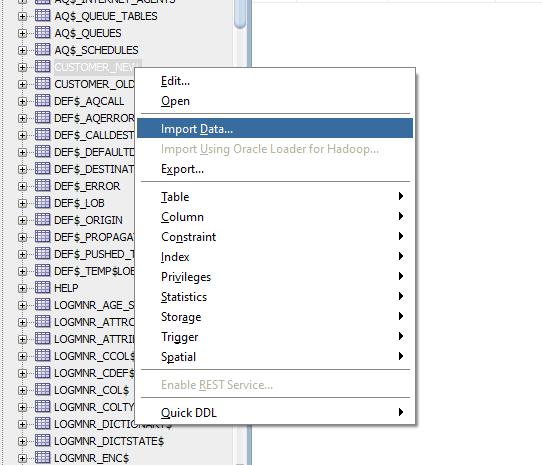
-
Select the file in import wizard step 1
-
No change in step 2 just click next
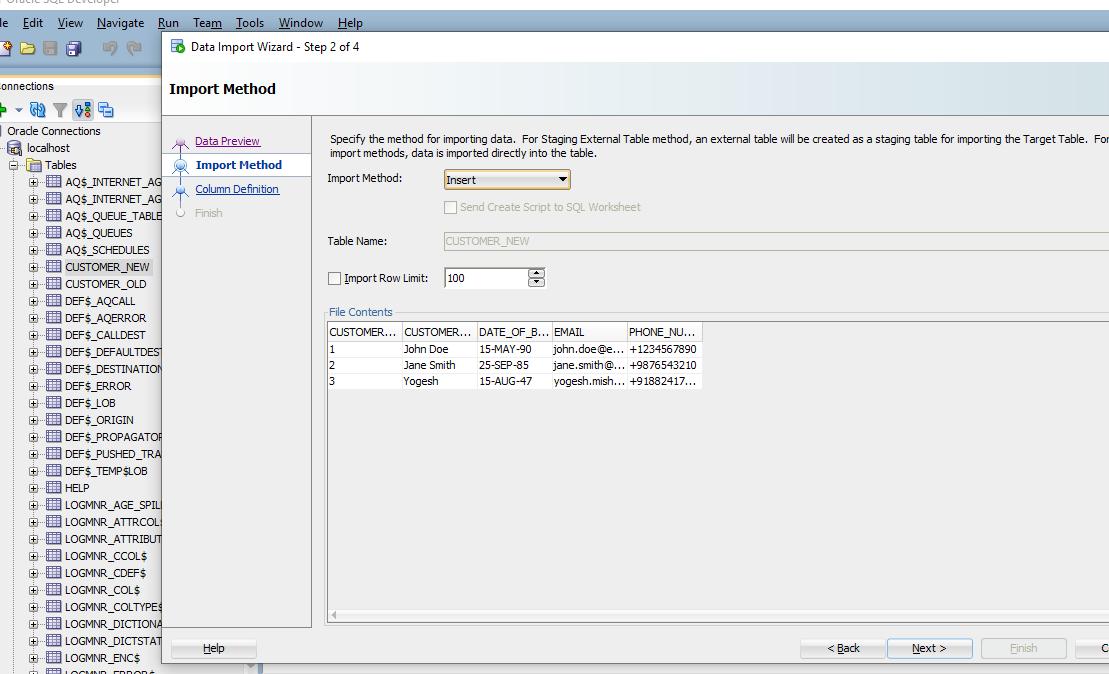
-
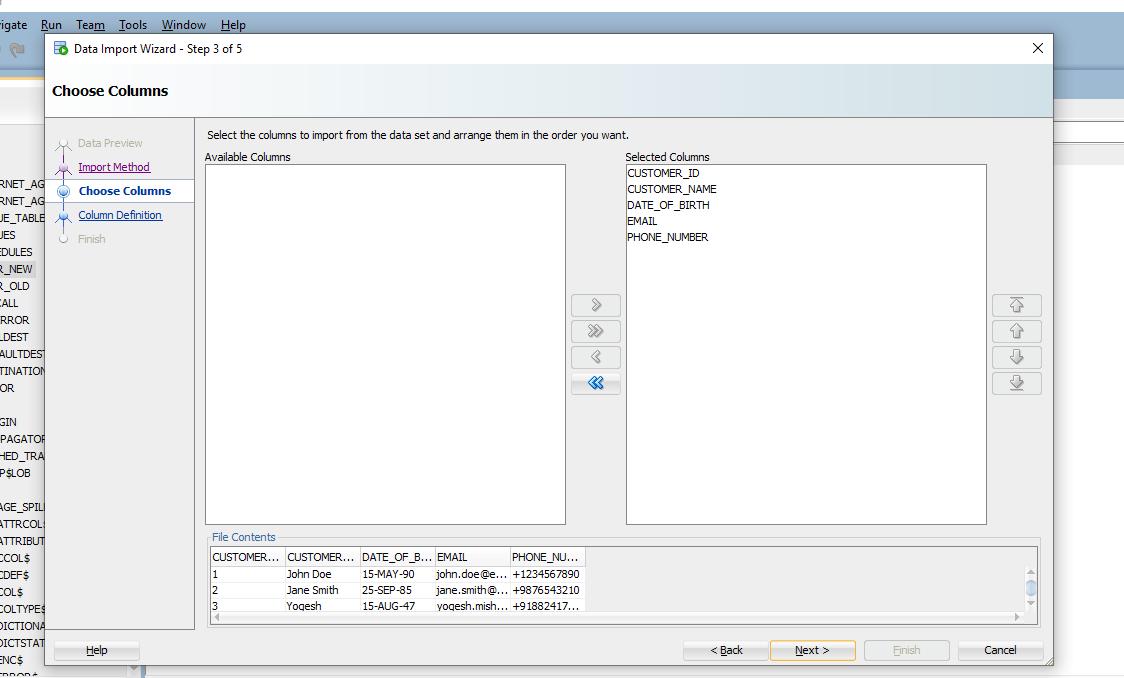
Select the columns you want to import in step 3. All wanted than just click next
-
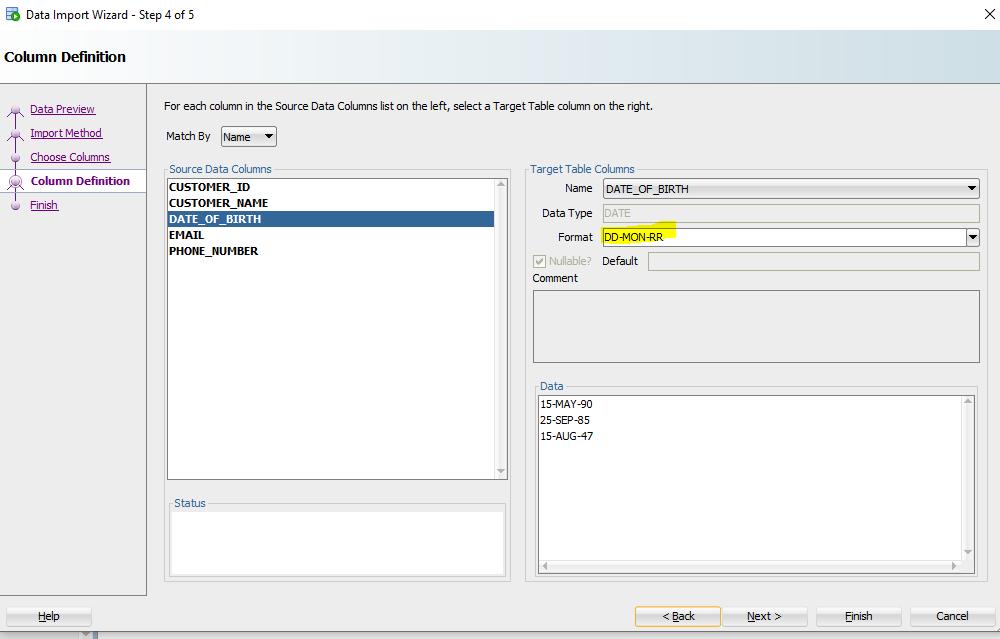
In step 4 sql developer will show error if there is any related to column data type if there is any fix that else smash the next button
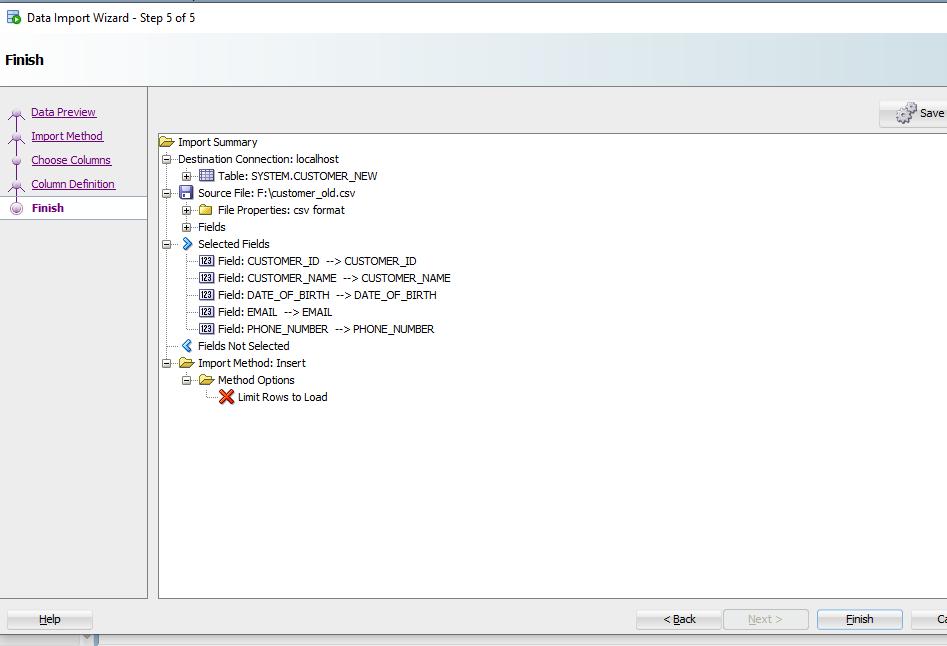
- Step 5 will show the summary, verify and finish
And import done!
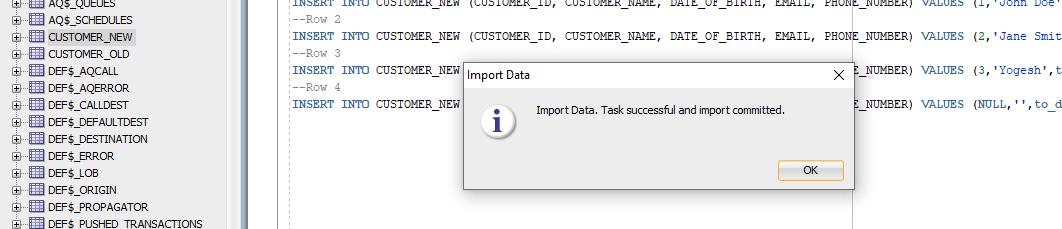
Whenever we execute any alter/insert/delete query in oracle we have to execute a commit; well here it’s automatically done here .